# Create a suppression list
List suppression automatically prevents communications from reaching email addresses and phone numbers marked. This feature blocks delivery to contacts who have opted out or reported spam, helping maintain compliance with regulations while protecting your sender reputation.
### Step-by-step guide
Contacts can opt-out or be blocked from receiving messages from your business. There are several ways that this can happen, and these suppressions can be tracked by checking the suppressions list.
#### Step 1: Go to the suppressions page
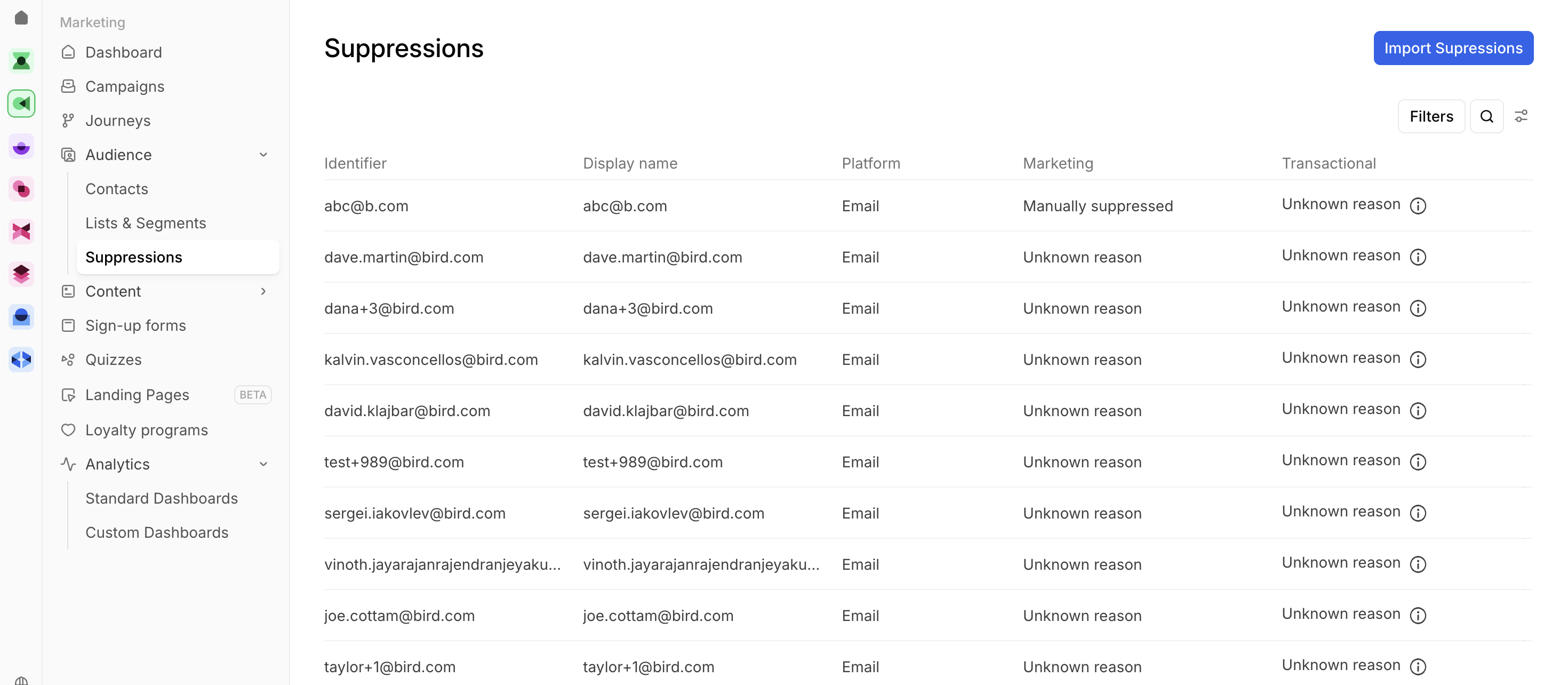
In your **Marketing**, navigate to: **Manage >** **Audience > Suppressions**
#### Step 2: Start a new import
Click **Import CSV** in the top-right corner of the Suppressions page.
#### Step 3: Format your CSV file
Prepare your CSV file for upload:
* Include at least one **identifier** per contact — either a **phone number** or **email address**.
* Optionally include additional columns for:
* **Marketing** (to suppress marketing messages)
* **Transactional** (to suppress transactional messages)
* **Platform type** (e.g., SMS, WhatsApp, Email)
Use the demo file in the importer as a template to ensure correct formatting.
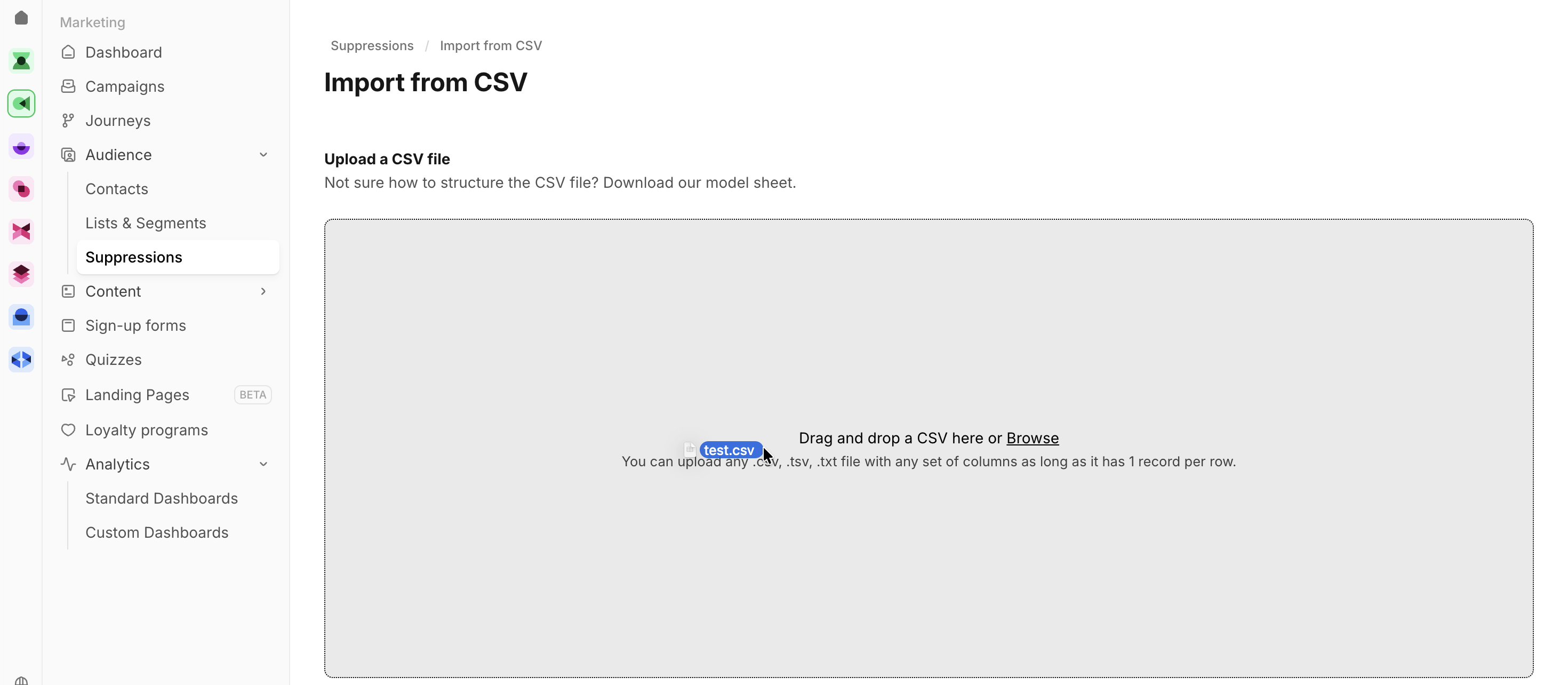
#### Step 4: Upload your file
Upload your suppression list:
* Drag and drop the file into the import window, or
* Click Browse to select the file from your device.
#### Step 5: Review the imported suppressions
After the upload completes, the suppressed contacts will appear in the list.
#### Step 6: Manage individual contacts
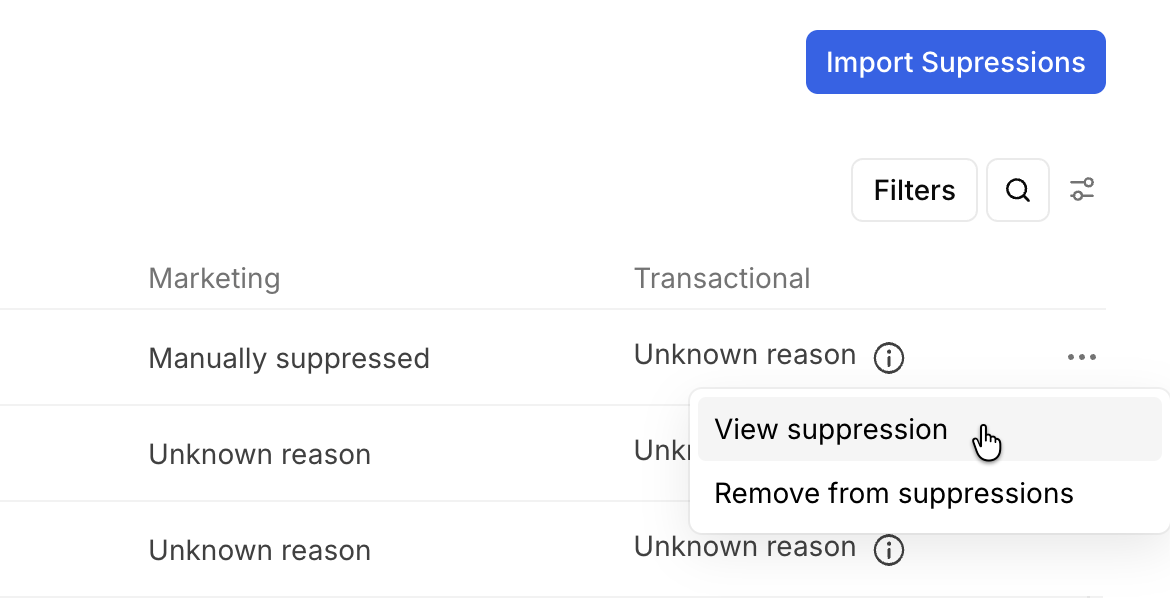
Click the three-dot menu next to any contact to:
* View suppression details
* Select **Remove from suppressions** to allow that contact to receive messages again
#### Step 7: Confirm your master list
Once complete, your master suppression list will reflect all contacts currently blocked from messaging.